- Zero-Code Efficient Printing: Multi-Dimensional Table-Based Label Automation Solution
- PrintSpirit Table Operation Tips (Part 1)
- PrintSpirit Table Operation Tips (Part 2): Report Printing
- Integrating LabVIEW with PrintSpirit for Barcode Printing | Technical Solution
- Barcode Label Printing Solution for Production Enterprises in Intranet Environment
- Embed "PrintSpirit" into Third-Party Websites for Quick Label Printing
- How to Quickly Implement Label Printing Functionality in Information Systems
- "Print Genie: JavaScript Scripts Help You Design Complex and Flexible Labels"
- "PrintSpirit" Print Service Fails to Start Automatically Solution
- Developing Label Printing Function for Information Systems at Minimal Cost with PrintSpirit Custom Edition
- Several Methods to Implement WEB Printing
- Introduction to Portable Mobile Printing Protocol CPCL
- In-depth Understanding of Zebra Printers and ZPL Language: A Beginner's Guide
LabVIEW Integration with PrintSpirit for Barcode Printing
LabVIEW (Laboratory Virtual Instrument Engineering Workbench), developed by National Instruments, is a graphical programming environment widely used in testing, measurement, and control applications.
In industrial scenarios, there are frequent requirements for real-time printing of product barcodes, packaging labels, and inspection results to enable automated production line control, logistics tracking, and quality management. However, LabVIEW's native printing capabilities often prove insufficient for barcode labels, with common issues including text misalignment, non-compliant barcodes, and unscannable QR codes. In regulated industries like pharmaceuticals and automotive parts manufacturing, integrating professional barcode printing tools is often the preferred solution.
Thus, customers frequently ask: Can PrintSpirit's professional label design and printing capabilities be integrated with LabVIEW for label printing?
The answer is absolutely YES!
PrintSpirit (Spirit software series) provides rich APIs suitable for various industrial scenarios. Both REST API and C DLL can be used for LabVIEW integration, combining LabVIEW's robust control capabilities with professional label design/printing features to achieve complex label printing in production lines.
Key advantages of this solution:
- Simplified Development: Encapsulate PrintSpirit's functionalities into LabVIEW subVIs for direct invocation without implementation details. You can build these subVIs yourself or contact technical support for pre-built modules.
- Professional Compliance & Complex Labels: Create labels containing text, icons, tables, barcodes, QR codes, and other elements compliant with industrial standards like GS1-128 and GS1-Datamatrix. Use PrintSpirit's visual designer to create professional labels without coding. See design guide.
- Decoupled Label Updates: Modify label templates through PrintSpirit Designer without changing LabVIEW code, significantly reducing manual errors. Enhances efficiency in production automation, logistics tracking, and quality management.
- Printer Agnostic: Supports ZPL-compatible printers (Zebra), TSPL-compatible printers (TSC), and Windows printers. Swap printers without code modifications, allowing flexible hardware upgrades (e.g., from entry-level to high-speed industrial printers).
Prerequisites
- Install PrintSpirit software (choose one):
- PrintSpirit Desktop
- PrintSpirit Center Download from: /product.html
- Pre-design label templates in PrintSpirit. Templates can contain variables populated during LabVIEW printing operations.
Note: The LabVIEW connection method varies depending on the PrintSpirit edition used.
Solution 1: Connect to PrintSpirit Center (REST API)
PrintSpirit Center provides REST API over HTTP. LabVIEW communicates via HTTP request nodes.
Configuration Steps
-
Start PrintSpirit Center Service
Ensure the service is running (default port:9011) and obtain the server IP. -
Configure HTTP Requests in LabVIEW
- Create HTTP Connection: Use "HTTP Client" under Data Communication -> Protocols with POST VI.
- Configure POST Request:
- URL:
http://[server-IP]:9011/print - Body: JSON data containing printing parameters and variables.
- URL:
- Process Response: Use "Response Body" and JSON parsing VIs to handle errors.
Key Implementation Details
PrintSpirit's REST API uses JSON for data exchange. The implementation focuses on:
- Constructing proper JSON data (label ID, variables, printer options)
- Parsing JSON responses for error handling
LabVIEW 2019+ natively supports JSON handling via Flatten To JSON and Unflatten From JSON nodes.
Data Packaging (LabVIEW Cluster → JSON)
Variables and printer parameters are organized into cluster arrays (saved as kv.ctl) for structured data management:
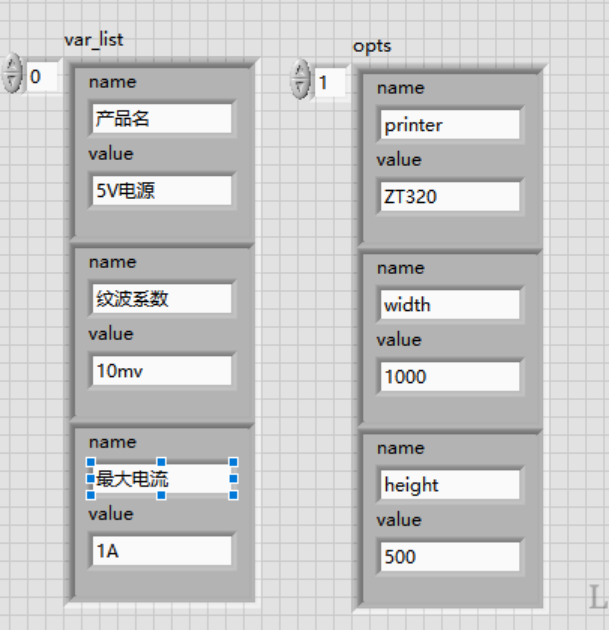
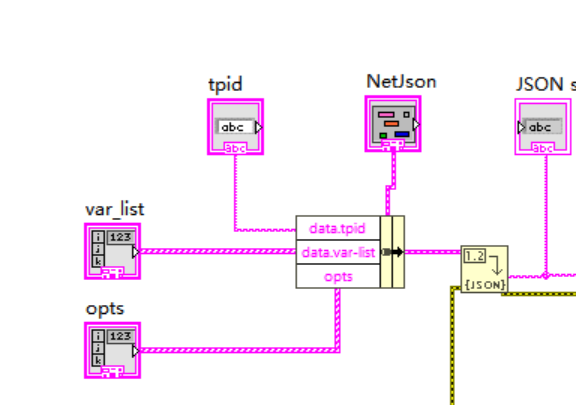
Response Handling (JSON → Error Cluster)
Parse the response {"rc": "OK/ERR", "msg": "..."} into LabVIEW's standard error handling flow:
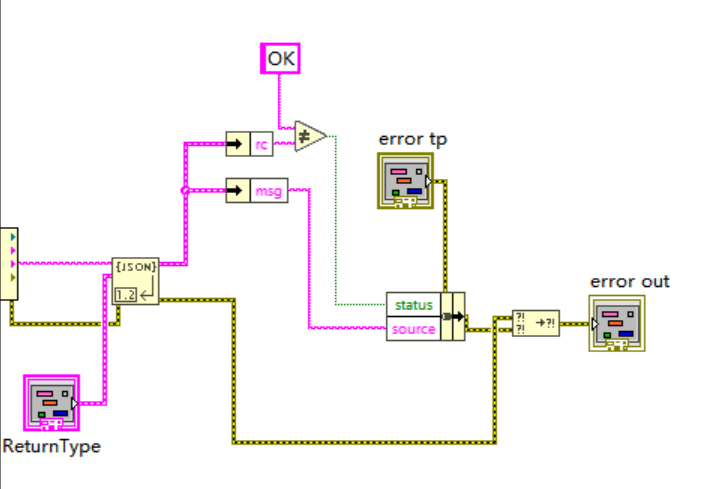
Solution 2: Connect to PrintSpirit Desktop (DLL Method)
PrintSpirit Desktop provides DLL integration. LabVIEW calls native functions via Call Library Function Node (CLFN).
Configuration Steps
-
Obtain DLL File
Contact technical support forlibspirit.dll(32-bit/64-bit versions available). -
Call DLL Functions in LabVIEW
Use CLFN to invoke:1int PrintA( 2 const char* tpid, // Template ID (not file path) 3 const unsigned char* vars, // Variables JSON 4 const unsigned char* opts // Printer options JSON 5);Return Values:
≥0: Success (returns task ID)<0: Error (callGetSpiritErrorGBK()via CLFN for details)
Implementation example:
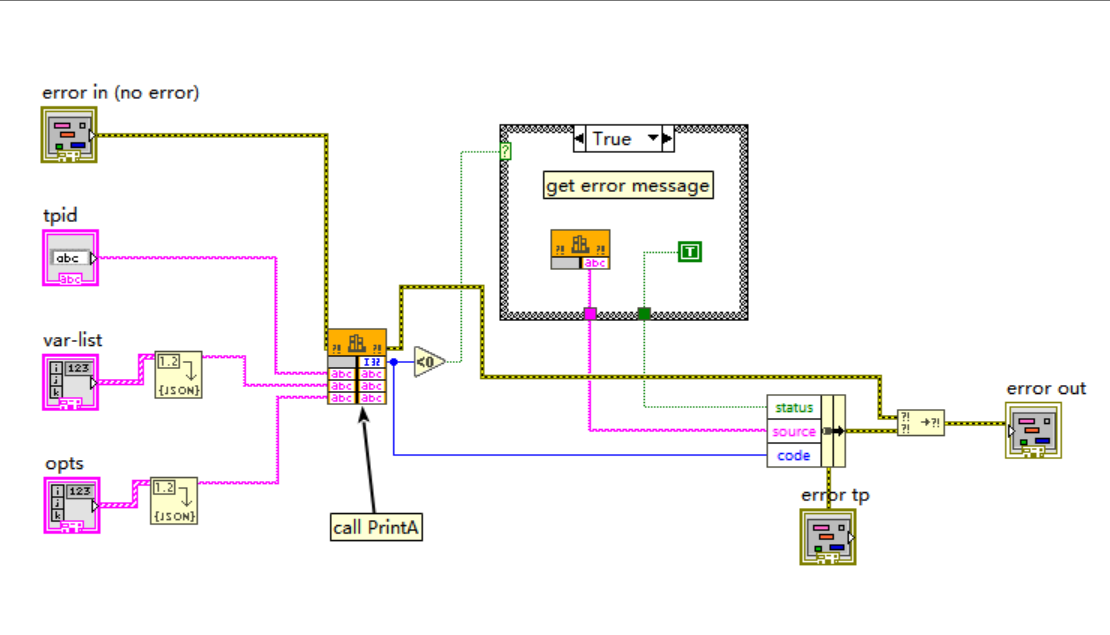
Best Practice: Encapsulate printing operations into reusable subVIs with
tpid,vars, andoptsinputs.
Using Spirit-LabVIEW-Toolkit
We provide a pre-packaged LabVIEW toolkit containing subVIs for both PrintSpirit Center and Desktop integration. Contact technical support for access.